

Measurement Context Menu Options
Last updated: May 14, 2026
411
views

Measurement Context Menu Options
The Context Menu is displayed when you right click on an existing measurement. The actual menu options displayed and which are enabled will depend on what you're doing. Here are the possibilities:
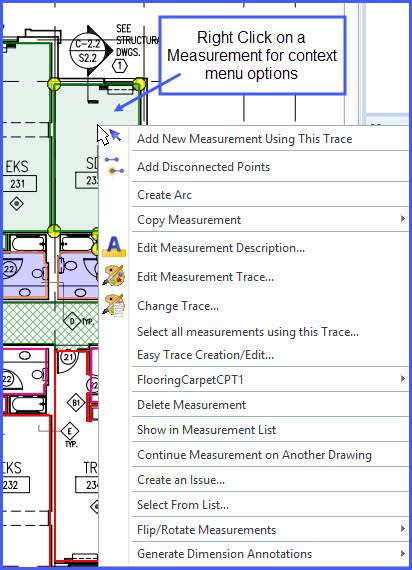
- Add New Measurement Using This Trace - This will only be displayed if you have selected a single measurement. Selecting this option starts a new measurement using the same parameters as the selected Measurement.
- Add Disconnected Point - Sometimes a single measurement is desired for several separate lengths or areas. Dimension handles this using "disconnected" points. The last point of the first length or area is "disconnected" from the first point of the next length or area.
To create two disconnected groups, first add the points in the first group, select this option, then add the first point of the second group. A measurement can have an unlimited number of groups.< - Create Arc - This will only be displayed if you are adding points to a measurement and have added at least 3 non-disconnected points. If you select this option, the last three points will be converted into an arc as described in Taking off Arcs and Circles.
- Copy Measurement - This will only be displayed if you are adding a measurement or have selected a single measurement. If you select this option, a sub-menu will be displayed allowing you to copy the Point Count, Length, Perimeter or Area for the current measurement to the System Clipboard. You can then switch to another application and Paste the measurement.
- Edit Measurement Description... - This will only be displayed if you are adding or have selected one or more measurements or annotations. This option is not available in the Basic Viewer. If you select this option, the Description Edit Window will be displayed, allowing you to set the description for the selected measurements and/or annotations.
- Edit Measurement Trace... - This will only be displayed if you are adding or have selected one or more measurements. This option is not available in the Basic Viewer. If you select this option with a sinlge measurement selected, the Trace Editing Window will be displayed, allowing you to set the trace for the selected measurement. If multiple measurements are selected, the Trace Properties List Window will be displayed allowing you to change individual properties across multiple measurements.
- Change Trace... - This will only be displayed if you are adding or have selected one or more measurements. If you select this option, the Standard Trace Tree Window will be displayed. This will allow you to set the trace for the selected measurements.
- Select all measurements using this Trace - This will only be displayed if you have selected a single measurement. Selecting this option will select all measurements using the same Trace on the drawing page.
- Easy Trace Creation/Edit... - If you select this option, the Easy Trace Creation/Edit Window will be displayed. This window is used to easily edit a subset of the properties of a measurement trace and (optionally) create a matching standard trace.
- Edit Extension... - This will only be displayed if you are adding or have selected a measurement whose trace uses an extension. For more information see the Extensions Overview. If you select this option, the Extension Measurement Values Window will be displayed, allowing you to set the extension values for the selected measurement. If the measurement uses a grid or roll extension, a sub-menu will be displayed:
- Edit Extension Values... - This option will edit the extension values as described above.
- Move/Rotate Layout... - This option will display the Move/Rotate Toolbar allowing you to move the grid orientation or rotate it. For more information see Editing a Measurement's Grid Information or Editing a Measurement's Roll Information.
- Delete Measurement - This option will only be displayed if you have selected a single measurement. If you select this option, the selected measurement will be deleted. If you select this while holding the Shift key down, it will be deleted immediately. Otherwise you will be asked if you're sure you want to delete.
- Show in Measurement List - This option will only be displayed if you have selected a single measurement. If you select this option, the Measurement list will be displayed showing the measurement you selected.
- Select from List... - This option will only be displayed when you are in single selection mode. It is useful when multiple measurements or annotations are overlaid it is difficult to select an individual measurement just using the mouse cursor. If you select this option, the Measurement Selection Window will display a list of the measurements and annotations that are close to the mouse cursor. From this list you can select a single measurement or annotation.
- Flip/Rotate Measurements - This option is displayed in Select or Multi-Select mode with measurements selected. Selecting this option displays a sub-menu of options.
- Flip Horizontally
- Flip Vertically
- Rotate 90 Degrees
- Rotate 180 Degrees
- Rotate 270 Degrees
- Reverse Point Order
Reversing the point order is useful if you have digitized an area in a counterclockwise direction making it a negative area. Reversing the point order will make it a positive area. - Generate Dimension Annotations - This option allows you to automatically generate dimension annotations for the overall dimensions of any selected measurements. Selecting this option displays a sub-menu of options.
- Horizontal - Create a dimension annotation for the overall width of the measurement.
- Vertical - Create a dimension annotation for the overall height of the measurement.
- Horizontal and Vertical - Create dimension annotations for the overall width and height of the measurement.
- Parallel to Segment X - Create a dimension annotation for the overall size of the measurement on a line parallel to the segment.
- Parallel and Perpendicular to Segment X - Create dimension annotations for the overall size of the measurement on a lines parallel and perpendicular to the segment.

